 MKCad
Apps · MKC-FREE-001 · Free
MK OrthoLeader
Makes annotation arrows in Plant 3D ortho drawings land on their component, also for valves imported from STEP.
- Arrows land on the component they annotate, already in the preview
- Corrected again after Update Annotations and when a tag is moved
- Tags stay next to their component after Edit View and Update View
- Arrows Plant 3D already places correctly are left untouched
- Runs in the background: no ribbon, nothing to configure
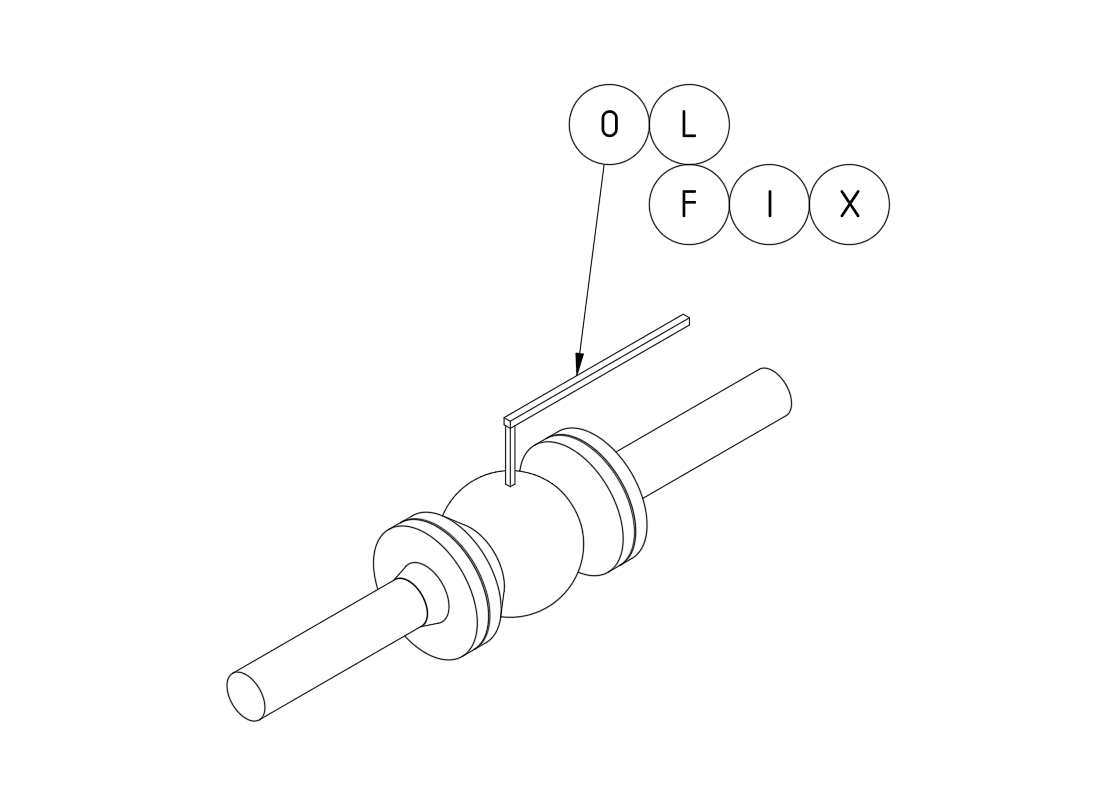
For drawings annotated before installation, run MK_OLFIX once on each sheet.
Freeno licence key · no registration
- Price
- Free
- Licence
- None needed
- Works with
- Plant 3D 2023–2027
- Platform
- Windows
See it work.
Before and after: BOM tag arrows on valves imported from STEPHow it works.
You keep annotating as usualWhat you do in Plant 3D
Annotate or Annotate BOM, moving the tag before you click
The preview arrow already points at the component
Place the tag
The arrow lands on the component; the leader starts at the edge of the BOM bubble
Move a tag with MOVE, grips or STRETCH
The arrow stays on the component and the new position is remembered
Update Annotations
Arrows reset by Plant 3D are corrected on the current sheet
Edit View or Update View
Tags go back to their place next to the component, arrows are corrected
UNDO
Works as usual: corrections are undone together with your edit
MKC-FREE-001
Download and install.
- 01Close AutoCAD Plant 3D.
- 02Unzip MKOrthoLeader-<version>.zip.
- 03Copy the MKOrthoLeader.bundle folder to %APPDATA%\Autodesk\ApplicationPlugins.
- 04Start Plant 3D. If AutoCAD asks whether to load MKOrthoLeader.dll, choose Always load.
Questions or a problem? Write to contact@mkcad.eu. If it saves you time, have a look at the other MKCad plugins for Plant 3D.