 MKCad
Auditing and backing up AutoCAD Plant 3D projects: the habits that save a job
A Plant 3D project is drawings plus a database, and losing either one costs weeks. What to audit, what a real backup includes, and a simple routine that keeps a project recoverable.
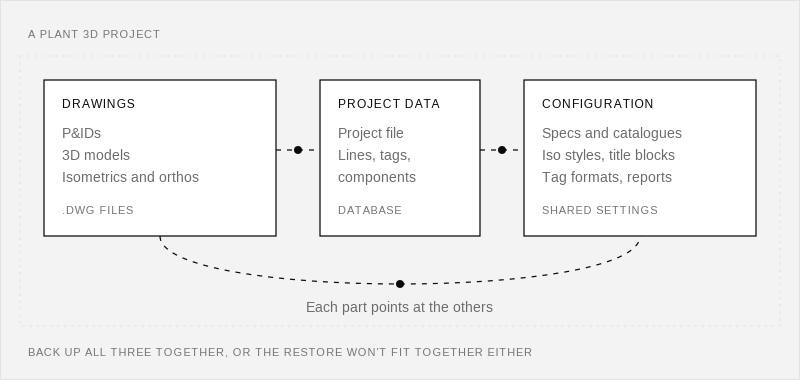
Nobody thinks about backups until the morning a drawing won't open. On a Plant 3D project that morning is worse than on a plain AutoCAD job, because a Plant 3D project isn't just a folder of drawings. It is drawings, a project database and a set of shared configuration files, all pointing at each other. Lose or damage one part and the rest stop making sense.
The good news is that keeping a project safe takes a few habits, not a big system.
What a Plant 3D project actually is
A Plant 3D project folder holds three kinds of thing:
- Drawings: P&IDs, 3D models, isometrics and orthos, each a DWG.
- Project data: the database files that store what Plant 3D knows about every line, component and tag, plus the project file that ties everything together.
- Configuration: specs and catalogues, iso styles and title blocks, report setups, tag formats.
The drawings and the database must agree with each other. That is why copying "the DWGs" is not a backup, and why restoring one drawing from last week into today's project can cause more trouble than it fixes.
Audit: find problems while they are small
Most project disasters start as small inconsistencies nobody noticed. A short, regular audit catches them early.
Drawings. Run AutoCAD's AUDIT on drawings that behave oddly or have grown unusually large, and let it fix the errors it finds. If a drawing won't open normally, RECOVER is the next step. Purging unused content keeps files lean, but keep a copy before purging anything you aren't sure about.
Data. Open Data Manager and look for the gaps that break deliverables: components with no line number, missing tags, mixed specs on one line. Fixing these weekly takes minutes; fixing them the week of an issue takes days.
Consistency. Run validation on P&IDs, and between P&ID and 3D if you use both. Differences found during design are a conversation; differences found by the client are a revision.
The project itself. Check that every drawing is in the project and opens from Project Manager, and that nobody has drawings stored outside the project folder "temporarily".
Back up: the whole project, consistently
A useful backup has three properties.
1. It contains the whole project folder. Drawings, project data and configuration together, so a restore brings back a project that works, not a pile of files that have to be reconnected by hand.
2. It is taken while nobody is working. Copying a database while someone is saving to it can capture it half written. Schedule backups out of hours, or make sure everyone has closed the project first.
3. It has history. One copy that is overwritten every night protects you from a dead disk, not from a mistake. If a bad change happened on Monday and you notice on Thursday, you need Monday morning's version. Keep daily copies for a couple of weeks, and weekly ones for longer.
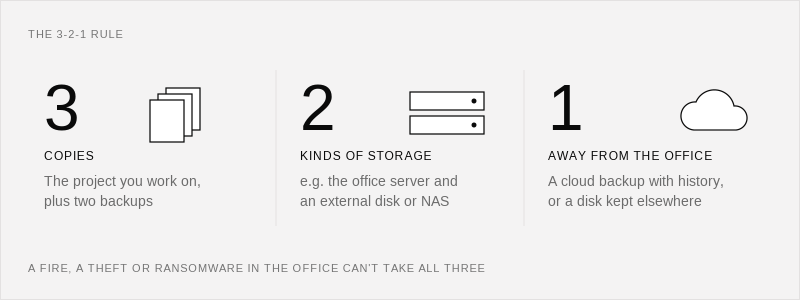
The classic rule still holds: three copies of the data, on two different kinds of storage, one of them somewhere else.
A synced cloud folder is convenient, but on its own it is not a backup. Sync faithfully copies a deleted or damaged file to every machine. Use it alongside versioned backups, not instead of them.
Take a snapshot before risky moments
Some moments deserve a backup of their own, labelled and kept:
- Before upgrading Plant 3D. Projects are upgraded to the new version, and there is no going back once that's done.
- Before changing specs on a project that already has a model.
- Before bulk edits: large imports into Data Manager, renumbering lines, swapping title blocks.
- At every issue: the project as it was when drawings went to the client, so you can always reproduce exactly what was sent.
Test the restore
A backup you have never restored is a hope, not a backup. Once in a while, restore a project into a separate folder, open it from Project Manager and check that the drawings open, the data is there and an isometric still generates. It takes half an hour and tells you whether the other hours spent on backups were worth anything.
A routine that works
- Daily: automatic, versioned backup of the whole project folder, out of hours.
- Weekly: a short audit: AUDIT on suspect drawings, Data Manager gaps, validation.
- Before risky changes and at every issue: a labelled snapshot.
- Every few months: a test restore.
None of this is glamorous, and that's the point. It is the kind of work that only gets noticed when it's missing.
Setting a project up so it stays manageable is the theme of how to manage a project in AutoCAD Plant 3D, and project setup and Data Manager both have modules in the Foundations course. If your team needs a project standard that includes backups and audits, that's part of company training.